
SMS One-Time Passcode Login Walkthrough
This document shows how an end user reaches the SMS verification-code step on the ShareCRM login page, and how the SMS consent checkbox gates sending. No SMS is sent unless the user explicitly checks the SMS agreement box.
1. Test entry
2. Walkthrough
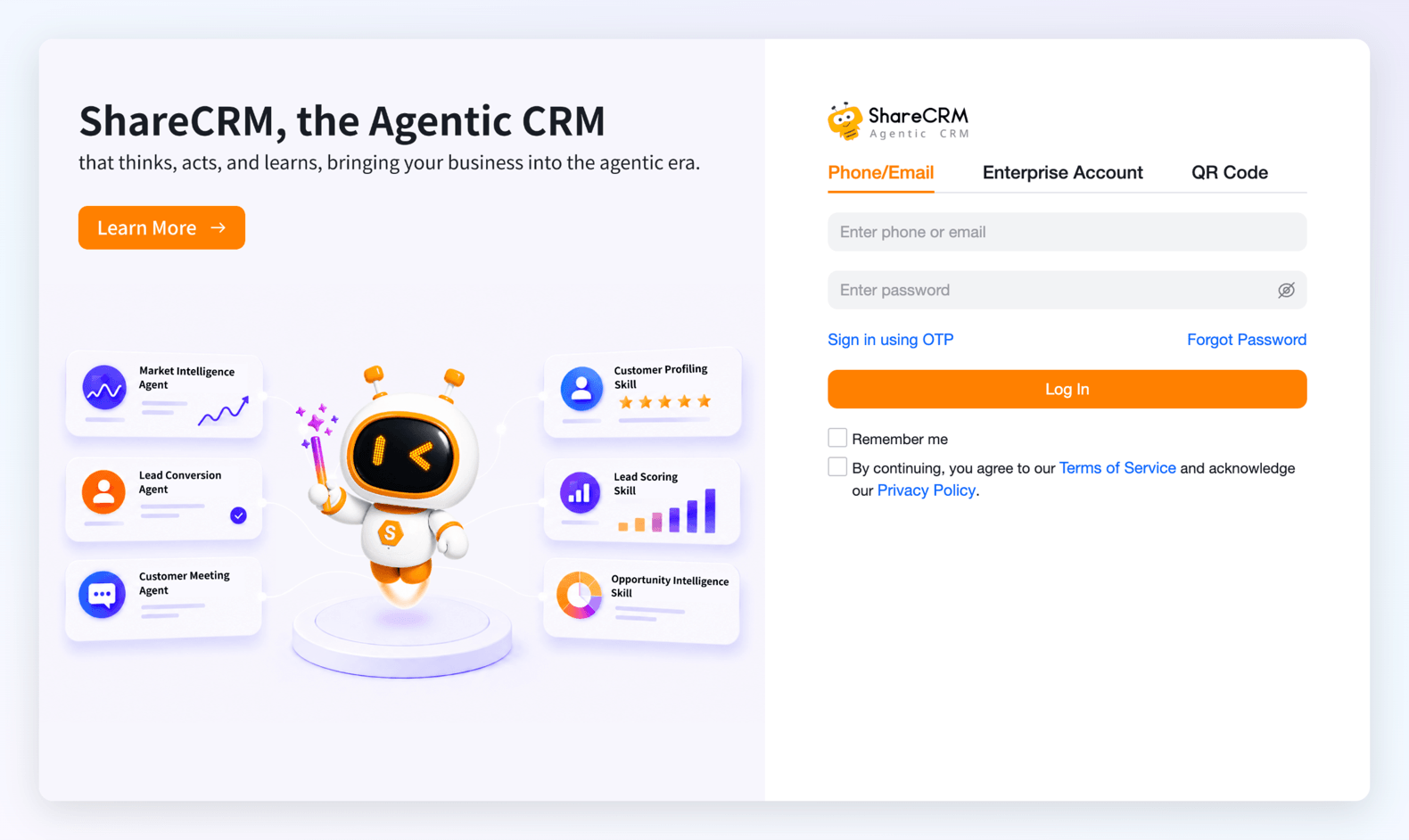
1. Open the login page
Open the URL above. Stay on Phone/Email. The default view is password login. The SMS consent checkbox is not shown on this view.
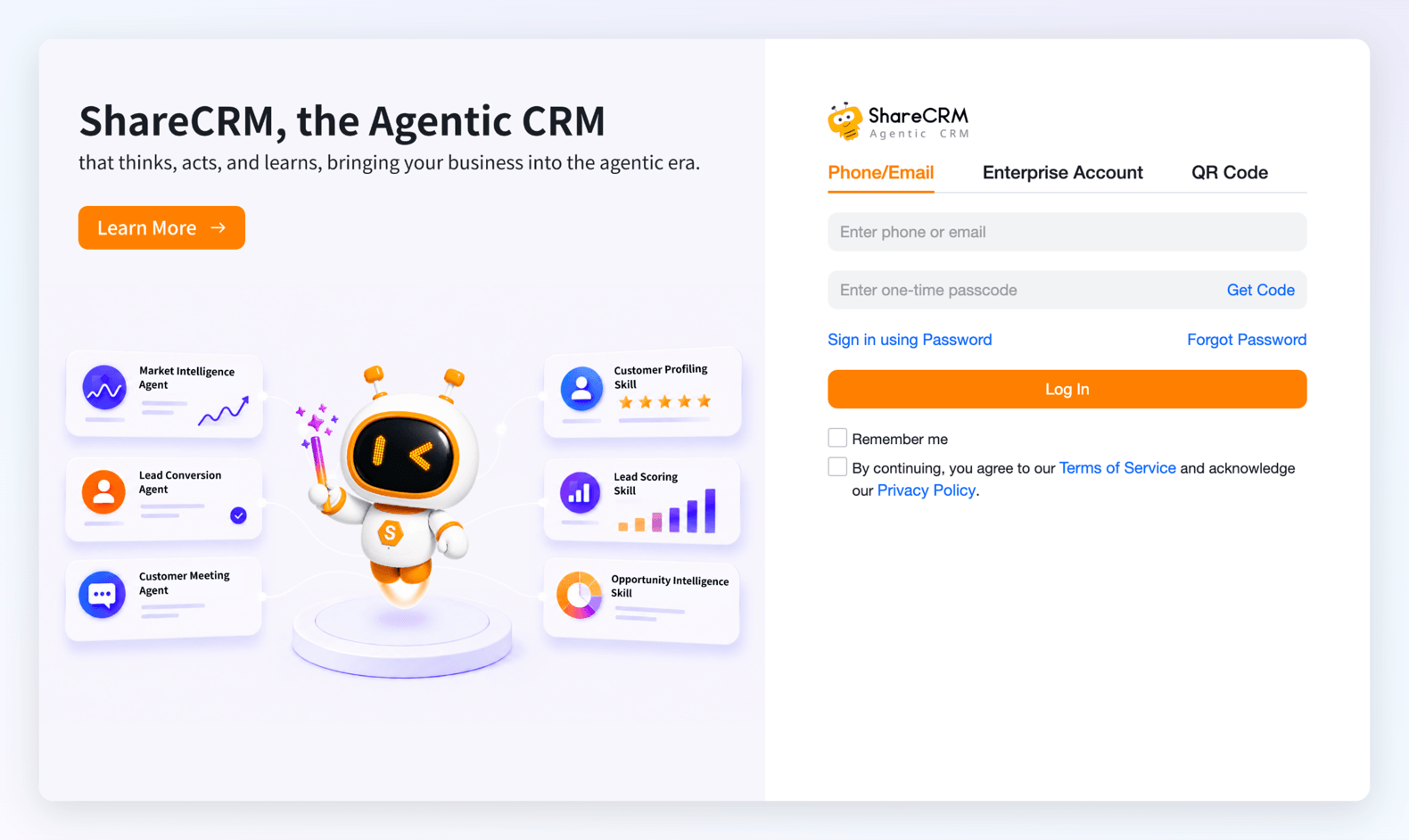
2. Switch to one-time passcode
Click Sign in using OTP. The password field is replaced by Enter one-time passcode and a Get Code control. The SMS consent checkbox still does not appear until a phone number is entered.
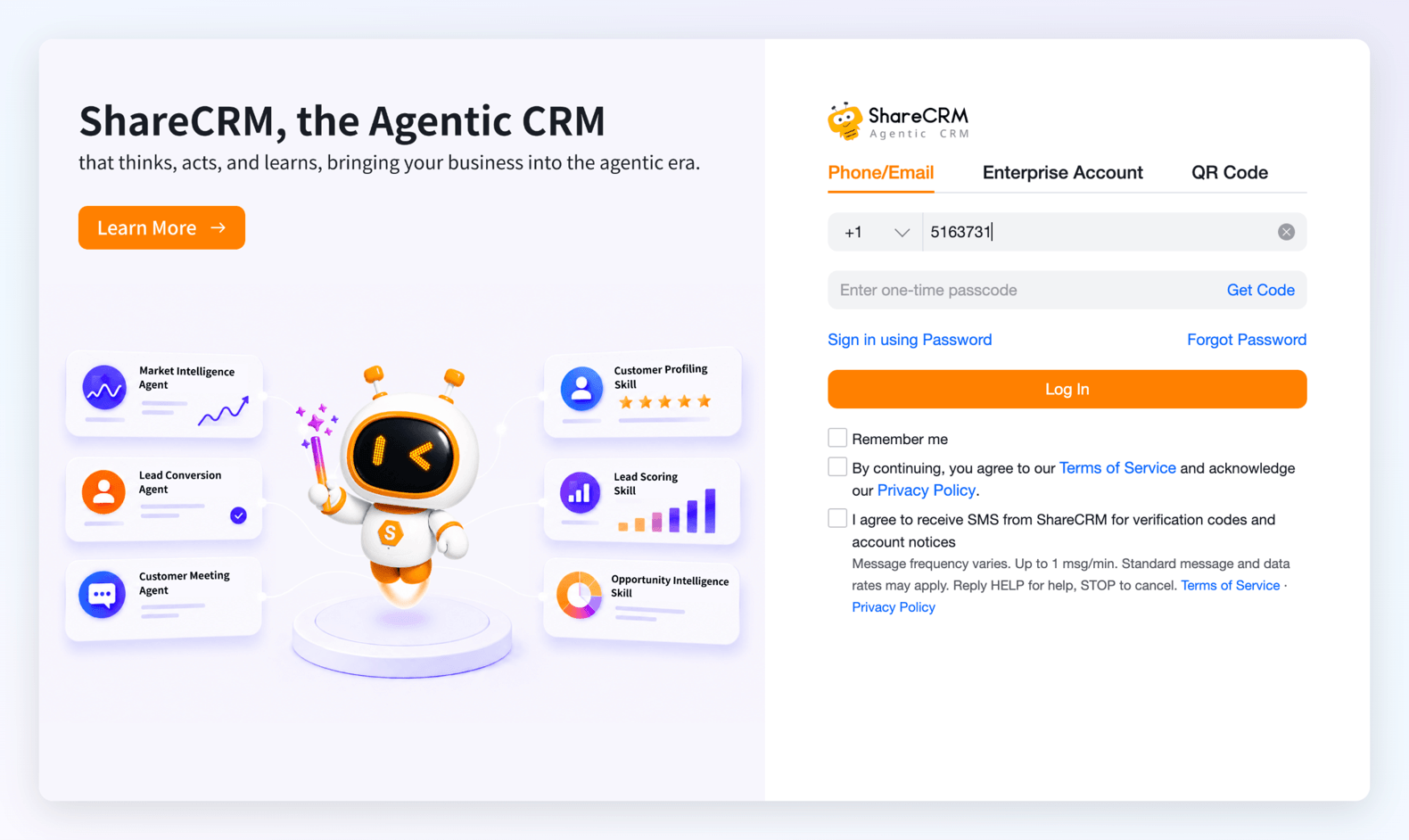
3. Enter a mobile number first, then select +1 so SMS consent appears
Type a mobile number in the Phone/Email field first. The country-code selector cannot be used until the page recognizes the input as a phone number. After that, select country code +1 (United States or Canada). An independent SMS consent checkbox then appears below the Terms of Service checkbox. It is unchecked by default.
Exact consent copy on the page:
I agree to receive SMS from ShareCRM for verification codes and account notices
Message frequency varies. Up to 1 msg/min. Standard message and data rates may apply. Reply HELP for help, STOP to cancel. Terms of Service · Privacy Policy
The Terms of Service and Privacy Policy links next to this checkbox open https://www.sharecrm.com/terms and https://www.sharecrm.com/privacy.
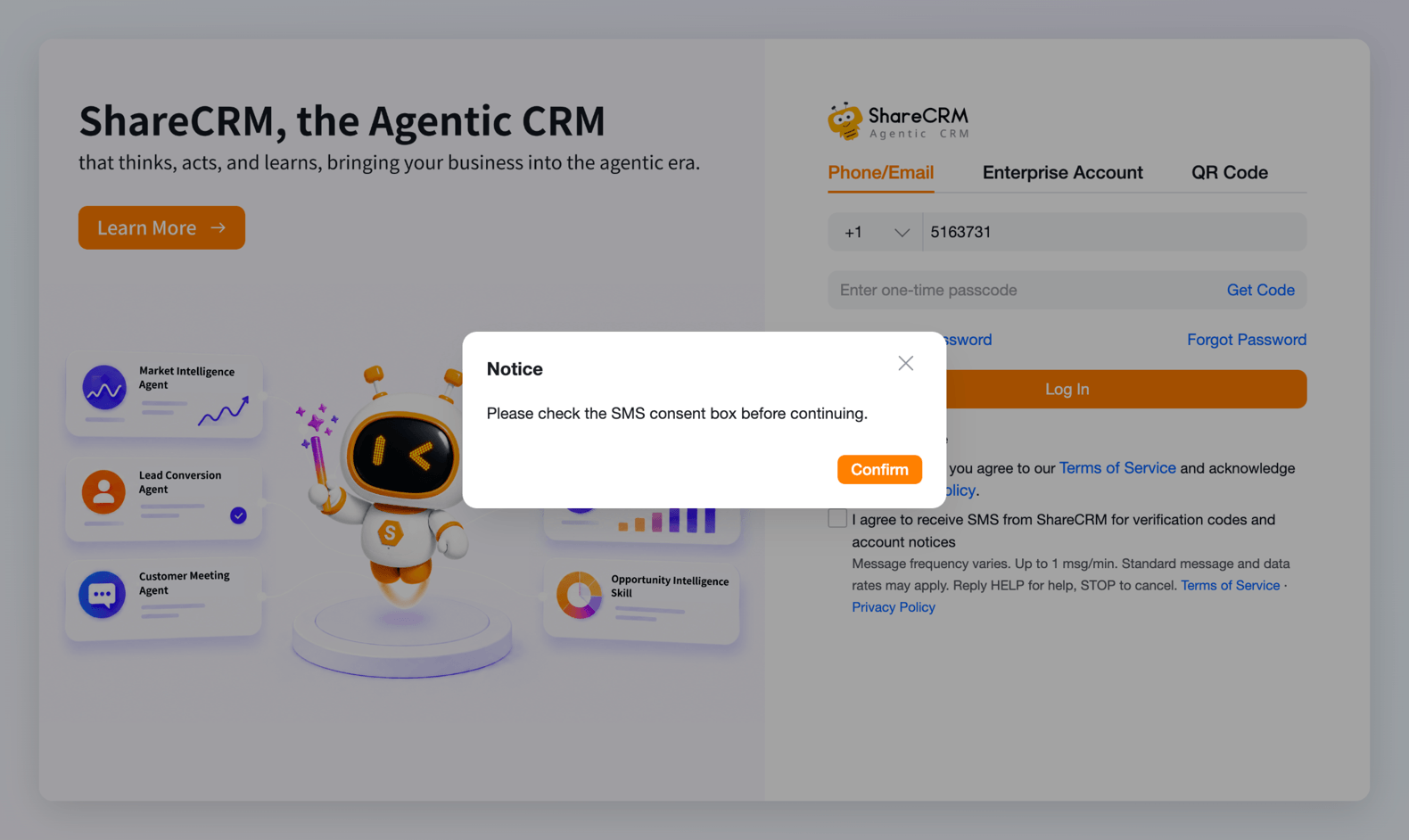
4. Click Get Code without checking SMS consent — no SMS is sent
Leave the SMS checkbox unchecked. Checking Terms of Service does not grant SMS consent. Click Get Code. Result: a Notice dialog appears. No verification SMS is submitted or delivered.
Notice
Please check the SMS consent box before continuing.
Closing the dialog does not check the SMS box and does not send a message.
3. When an SMS is allowed to send
Required before any verification SMS: the user must manually check I agree to receive SMS from ShareCRM for verification codes and account notices, then click Get Code.
The page never auto-checks the SMS box.
4. What the reviewer should confirm
- Login URL above: Phone/Email → Sign in using OTP → enter a mobile number → then select +1.
- SMS opt-in is a separate checkbox, not bundled into Terms of Service.
- Default state is unchecked.
- Consent text names ShareCRM, verification codes, and account notices.
- Disclosure is visible next to the checkbox: frequency, 1 msg/min cap, standard message and data rates, HELP, STOP, plus Terms and Privacy links.
- Get Code with the box unchecked does not send SMS.